Monthly Archives: June 2018

Generate Public and Private Keys using PuTTYgen

Start the PuTTYgen utility, by double-clicking on its .exe file

For Type of key to generate, select RSA. In the Number of bits in a generated key field, specify either 2048 or 4096 (increasing the bits makes it harder to crack the key by brute-force methods). Click the Generate button.

Putty Gen1

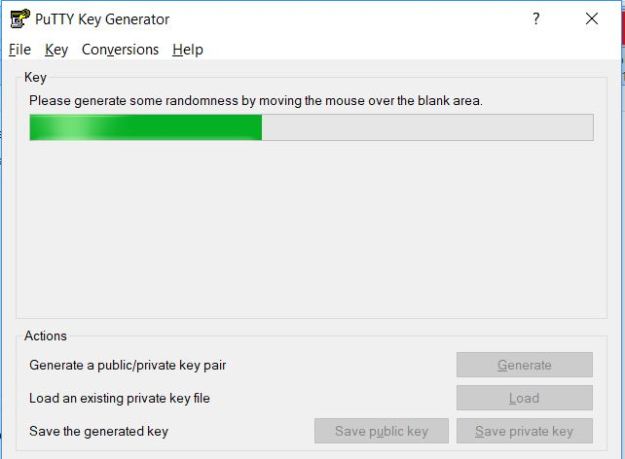
Move your mouse pointer around in the blank area of the Key section, below the progress bar (to generate some randomness) until the progress bar is full.
Putty Gen2

A private/ public key pair has now been generated, Click the Save public and private keys. If you lose your keys and have disabled username/password logins, you will no longer be able to log in server.

Putty Gen3

Thank you !!


Creating Single Instance Database in Oracle Cloud


Login to Oracle cloud (https://cloud.oracle.com/home) by providing Identity Domain, you will see following Dashboard console:

Cloud creat1

Click on create Instance and database:

Cloud create2

Click on Custom:

Cloud create3

Provide instance name, DB Software version and other details…

Cloud create4

Provide DB Name and other details as below, Most important upload ssh public key which can be generated using puttygen Generate Public and Private Keys using PuTTYgen, save respective private key which can be used to connect server once after the configuration.

Please provide username and password when you are planning to use cloud storage container for backups.

Cloud create5

Double check the provided configuration before click on create database

Cloud create6

Database creation and configuration takes a while to complete the process and there you go..

Cloud create7

Thank you !!