
Create an Oracle Cloud Infrastructure Compute instance (VM) containing the Release 12.2.14 database and application tiers from one of the provided images
Database Version – Oracle Database 19c (19.24 RU)
Oracle E-Business Suite Version – 12.2.14
Operating System – Oracle Linux 8 8.10 64-bit


Choose the Image from Market place

Select Image – Oracle E-Business Suite 12.2.14 Demo Install Image

Select Shape


Please visit this page for VCN and Subnet creation – OCI – Creating Virtual Cloud Network(VCN) with Public and Private Subnets
please visit this page for Compute Instance creation – OCI – Create OCI Compute Instance

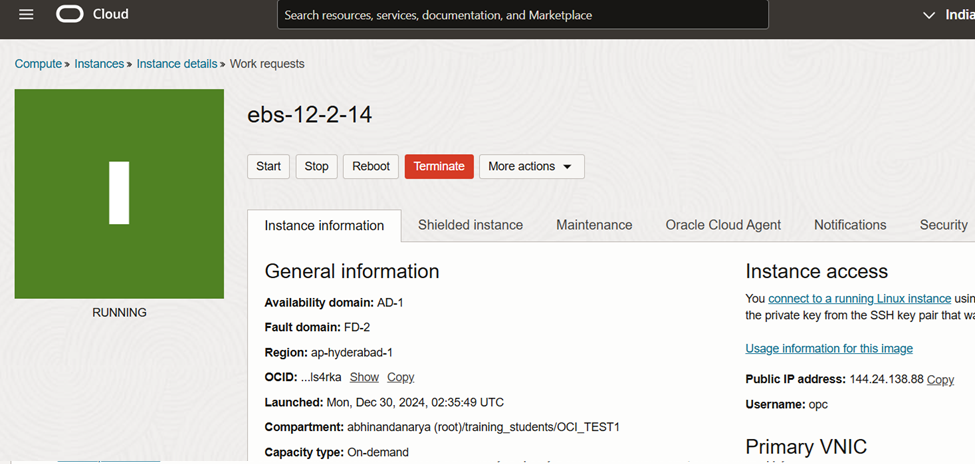
Connect to Compute Instance and Perform Post-Install Steps
$ sudo su -
# yum update
Is this ok [y/d/N]: y

# firewall-cmd --add-port=8000/tcp --permanent
# systemctl restart firewalld

# firewall-cmd --list-all

Update Hostname
# /u01/install/scripts/updatehosts.sh

Configure Web Entry Point
$ /u01/install/scripts/configwebentry.sh
Enter the Web Entry Protocol (Eg: https/http): http
Enter the Web Entry Host Name(Eg: public): myapps
Enter the Web Entry Domain Name:(Eg: example.com): example.com
Enter the Web Entry Port:(Eg: 443/80): 8000
Enter the ORACLE_SID:(Eg: EBSDB): EBSDB
Running AutoConfig to complete the configuration

Enter the APPS user password:  <apps_password>


Enable and Change SYSADMIN Password
$ sudo -i -u oracle
$ /u01/install/APPS/scripts/startdb.sh
$ /u01/install/APPS/scripts/startapps.sh
$ . /u01/install/APPS/EBSapps.env run

$ mkdir -p ~/logs

$ cd ~/logs
$ sh /u01/install/APPS/scripts/enableSYSADMIN.sh
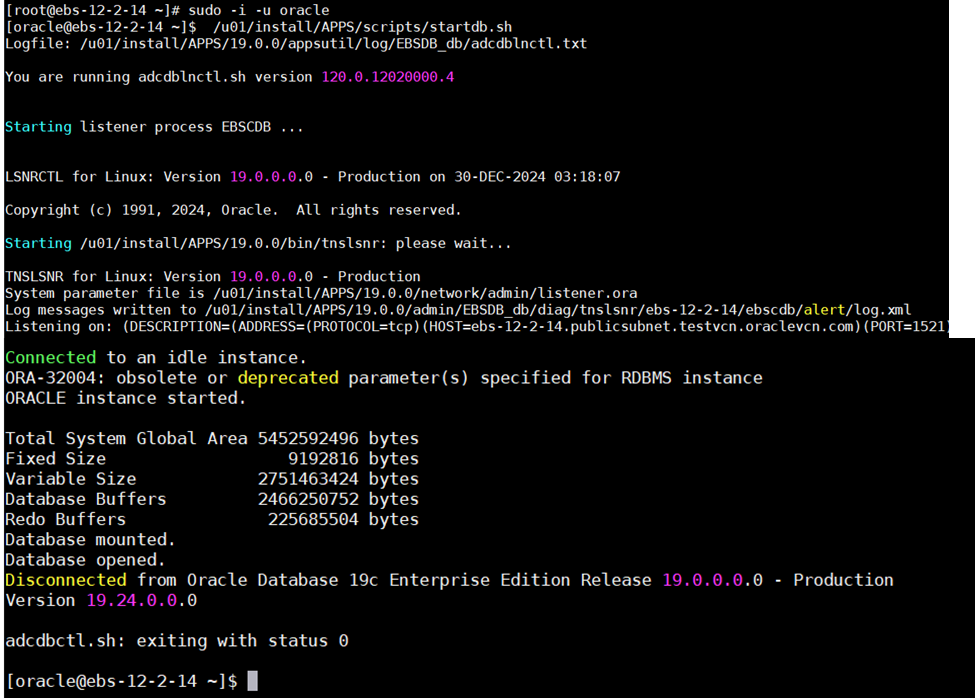

Now add the Host Entry in your Windows Laptop/Desktop with the EBS VM Instance IP. Access the Oracle EBS URL
C:\\Windows\System32\drivers\etc

Happy Learning !!
 ORACLE CLOUD DBA BLOG
Hi can you please assist we are trying to set this up but we are having issues