Tag Archives: Oracle CLOUD

OCI – Creating Virtual Cloud Network(VCN) with Public and Private Subnets

OCI Console -> MENU Networking -> Virtual Cloud Networks. Click Create Virtual Cloud Network (VCN) .

Provide VCN Name and Compartment

Choose a CIDR block – 10.0.0.0/16

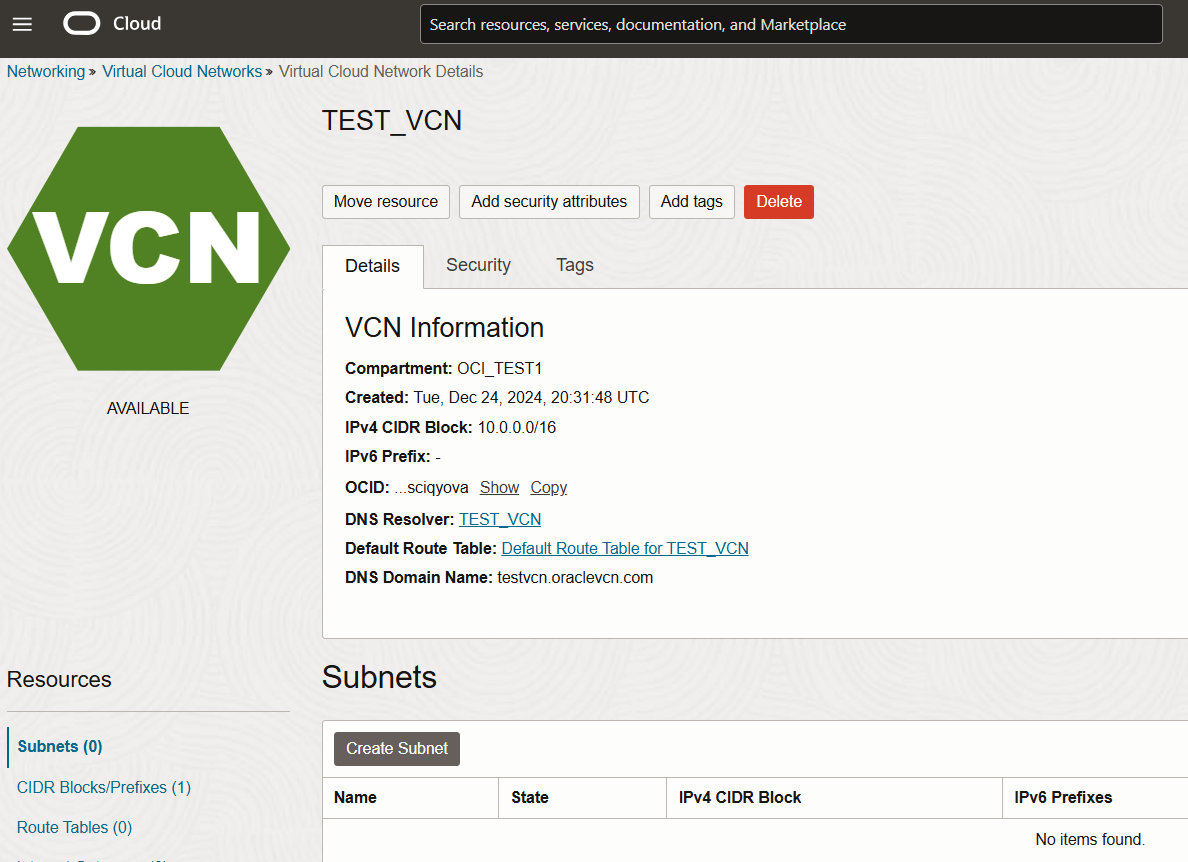
VCN Creation is completed successfully. will work on subnet creation.

Create Public Subnet

TEST_VCN -> Create Subnet

Provide Subnet name and choose compartment

Choose a CIDR block – 10.0.1.0/24

Choose Public Subnet Access and Create Subnet

Private Subnet Creation:

TEST_VCN -> Create Subnet

Provide Subnet name and choose compartment

Choose a CIDR block – 10.0.2.0/24

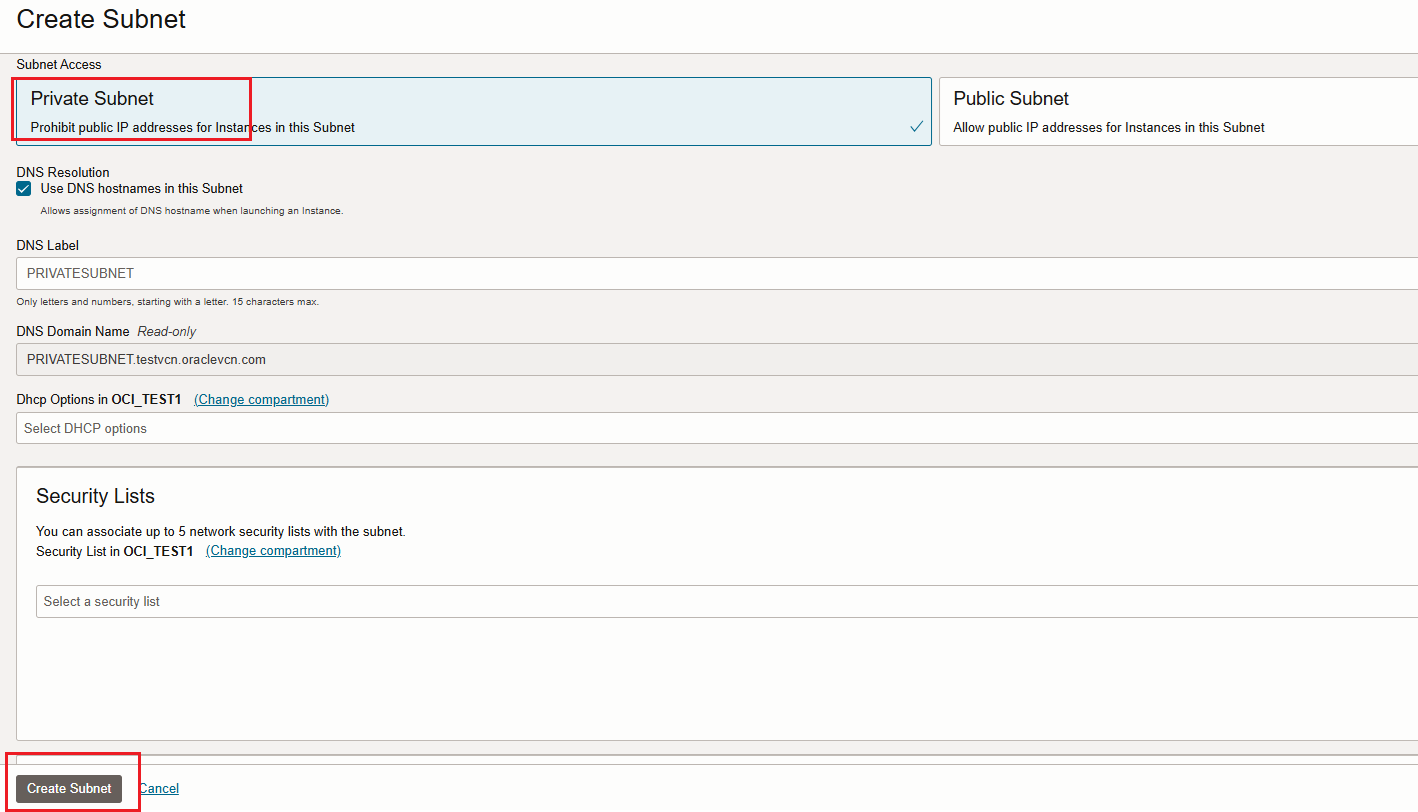
Choose Private Subnet Access and Create Subnet
Review below VCN and Public and Private Subnet details

Thank you !

Happy Learning !!

Installation of OCI CLI in 10 minutes

I choose server with Oracle Linux 8 on OCI always free to complete the setup

Update server before installing the CLI.

[root@testserver tmp]# sudo dnf update

Install Oracle Developer Tools

[root@testserver ~]# sudo dnf -y install oraclelinux-developer-release-el8

Install python

[root@testserver ~]# dnf install python36-oci-cli

Check the OCI CLI version

Setup the OCI to work with our Cloud Account

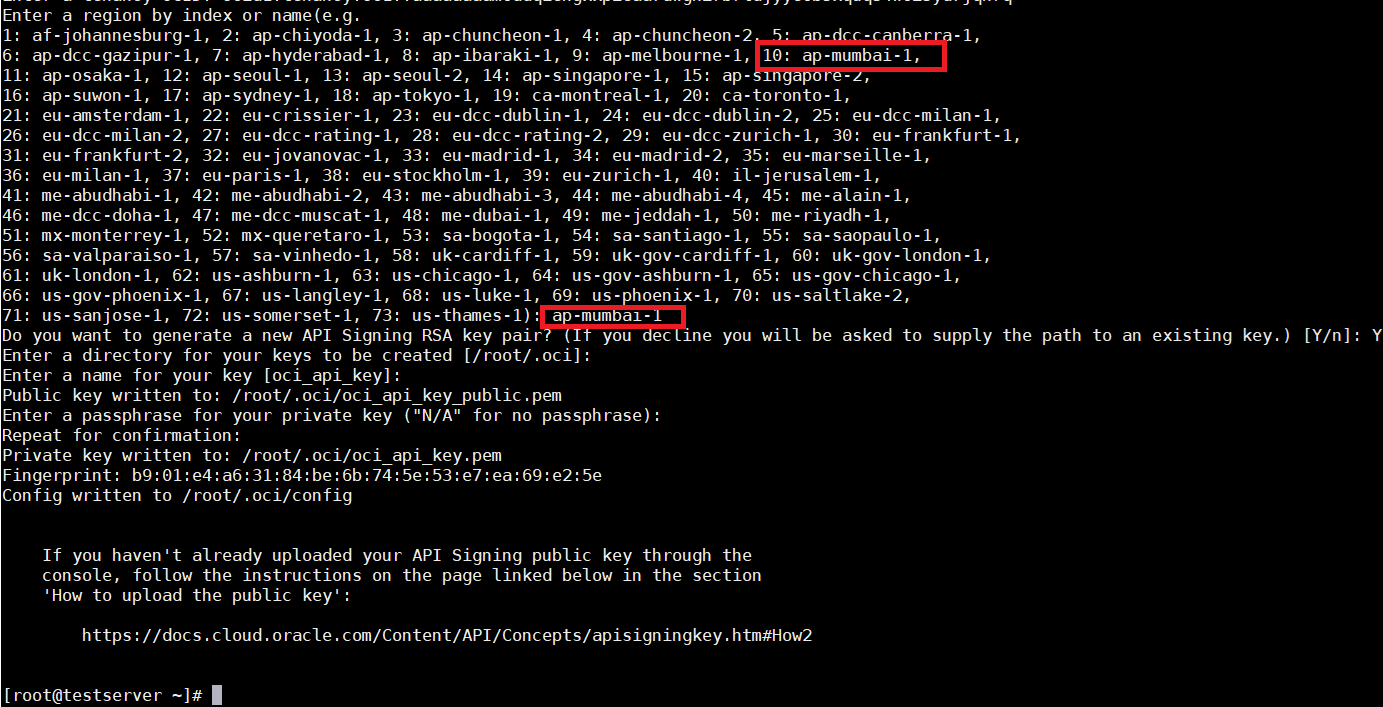
[root@testserver ~]# oci setup config

Provide OCI User Profile OCID – Profile -> User settings -> OCID

Provide OCI Tenancy OCID – Profile -> Tenancy details -> OCID

Provide region –> Number#10 or ap-mumbai-1

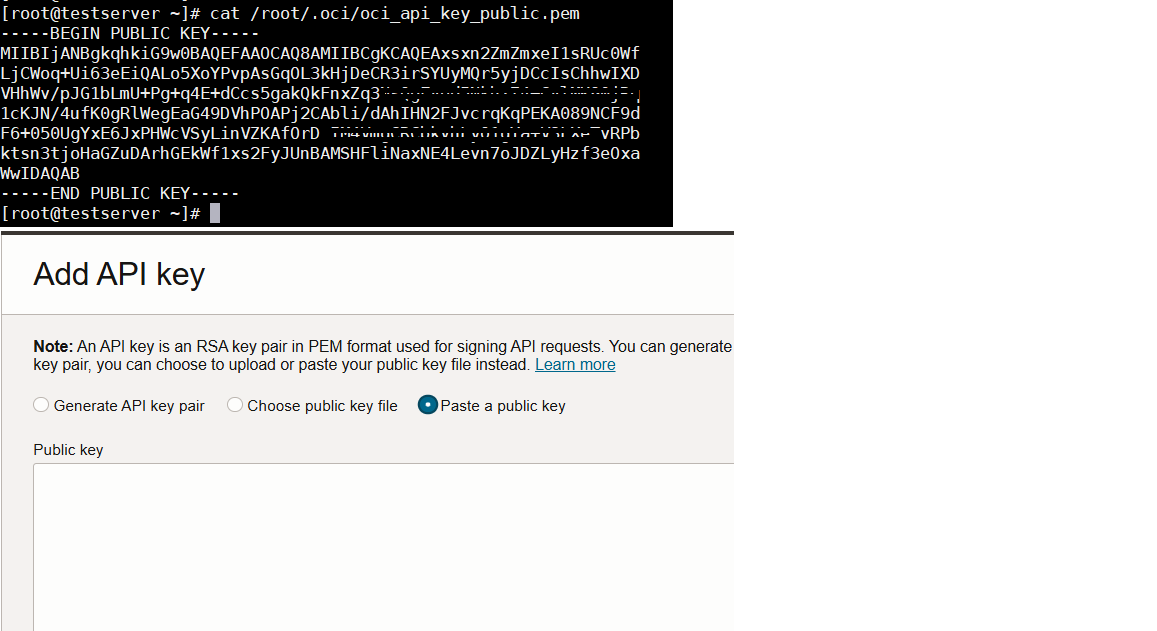
Need to upload the API key on OCI user which will be using for authentication

OCI User Profile -> User settings -> API Keys

Add API key -> Paste the public key

This Completes OCI CLI Setup – Lets validate the setup

[root@testserver ~]# oci iam availability-domain list

[root@testserver ~]# oci iam compartment list

Thank you !

Happy Learning !!
Creating Single Instance Database in Oracle Cloud


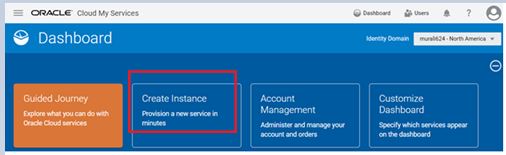
Login to Oracle cloud (https://cloud.oracle.com/home) by providing Identity Domain, you will see following Dashboard console:

Cloud creat1

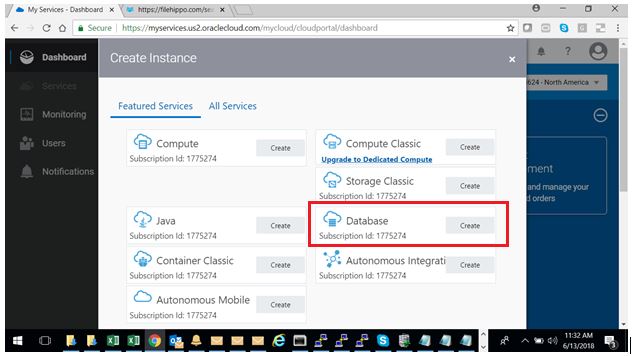
Click on create Instance and database:

Cloud create2

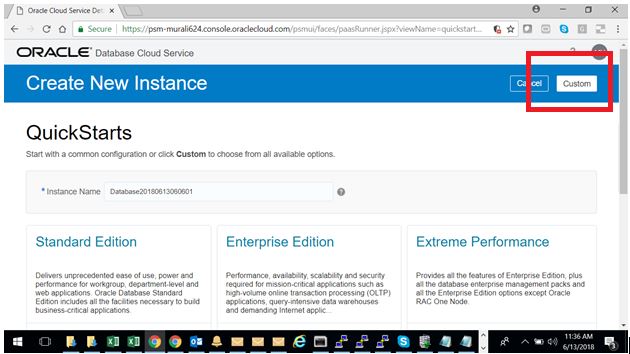
Click on Custom:

Cloud create3

Provide instance name, DB Software version and other details…

Cloud create4

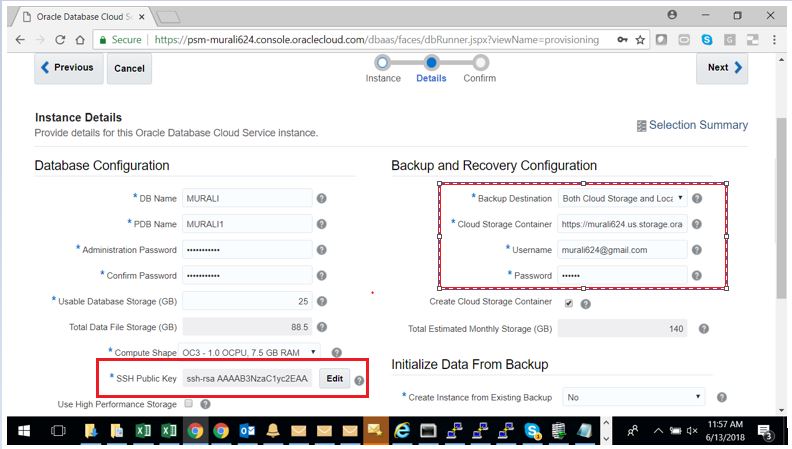
Provide DB Name and other details as below, Most important upload ssh public key which can be generated using puttygen Generate Public and Private Keys using PuTTYgen, save respective private key which can be used to connect server once after the configuration.

Please provide username and password when you are planning to use cloud storage container for backups.

Cloud create5

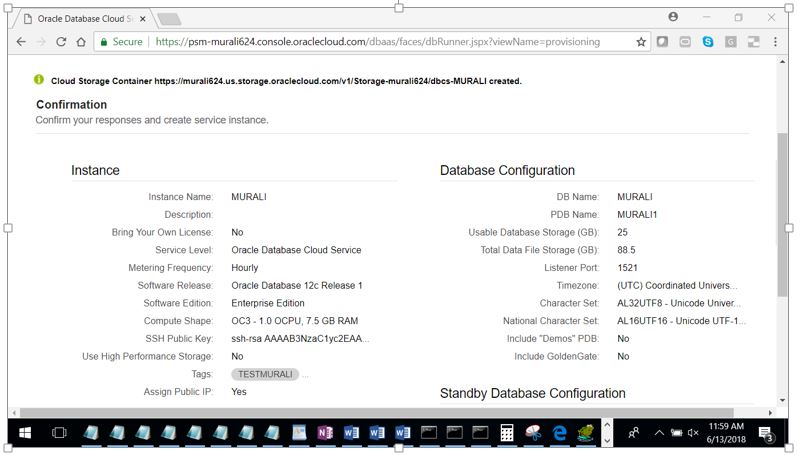
Double check the provided configuration before click on create database

Cloud create6

Database creation and configuration takes a while to complete the process and there you go..

Cloud create7

Thank you !!